 Wattwin
From manual processes to flexible workflow automation
Making workflow automation simple for non-technical users at solar energy companies that use Wattwin to manage their business.
The challenge
Customers using Wattwin's B2B SaaS platform needed automation to avoid doing repetitive tasks manually.
Previously, the Wattwin support team created these workflows for customers using a complex internal tool. Customers had to contact Wattwin whenever they needed a new automation.
The challenge was to create a workflow builder that allowed customers to create and manage their own automations, without depending on the Wattwin team, while working within the limits of the existing backend.
Success criteria
 Allow customers to create and manage their own workflows
- Reduce the need for Wattwin support
- Make workflows easy to create and configure
- Support different automation needs
- Make automation accessible to non-technical users
What I learned
I studied the platform, the most common workflows and customer needs to understand what users wanted to automate.
I reviewed different actions and use cases through interviews, feedback and support requests, and worked closely with developers to understand the backend limitations.

Customer feedback
Users needed automation to reduce manual work.
Support requests
Many workflow setups required help from the Wattwin team.
Customer conversations
Emails, calls and feedback helped us understand what customers wanted to automate.
Existing process
The internal workflow tool was very complex and difficult to use without technical knowledge.
Understanding the automation model
Before proposing solutions, I mapped the automation architecture to understand how users mentally modelled workflows.
Every automation follows a simple logic:
Trigger → Condition → Action
The challenge was not understanding the model itself, but helping users configure increasingly complex combinations without feeling overwhelmed.
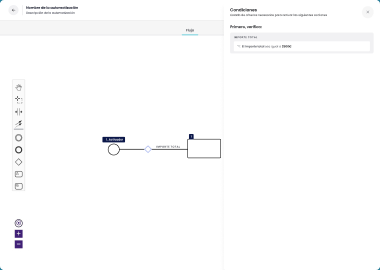
Trigger

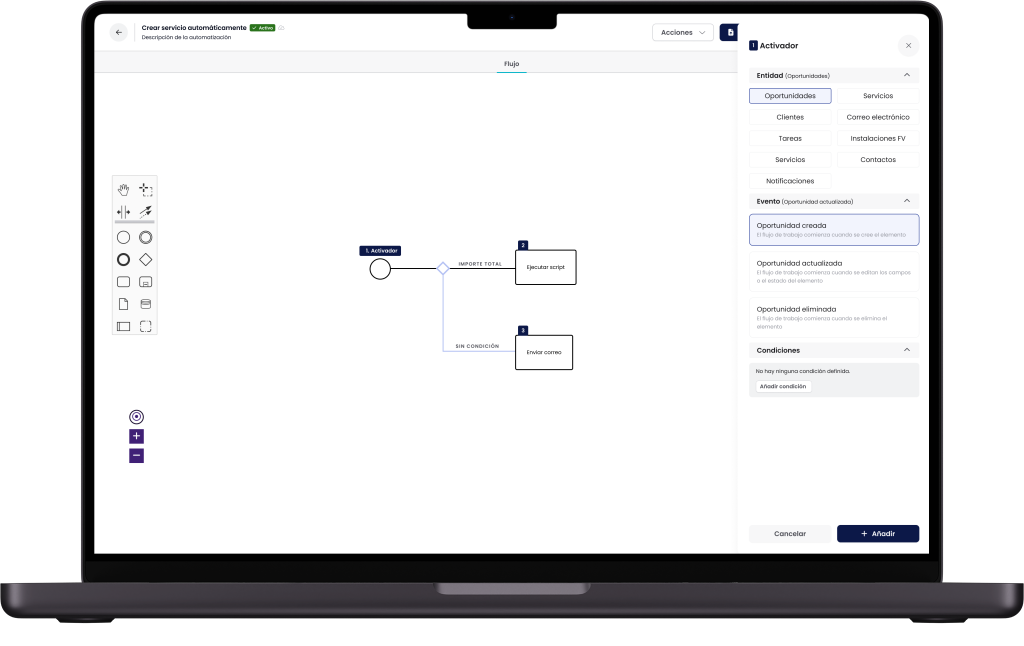
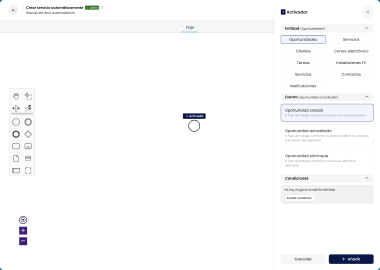
The trigger is based on an entity, an event and some conditions.
The goal is to give the user the maximum possibilities to customize the trigger based on different criteria and use cases.
Condition

The condition is what decides if the action will be executed.
The action will only occur if the condition is true; otherwise, it won’t be triggered.
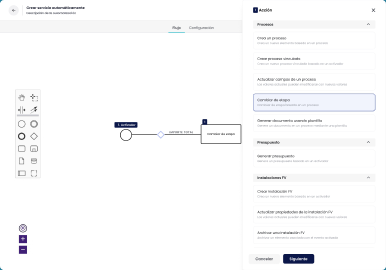
Action

The action will be executed when the trigger and the condition are met.
Key design decisions
Give users control over their own workflows
Customers previously had to contact Wattwin to create their automations.
I designed a workflow builder that allowed customers to create and manage their own workflows without relying on the Wattwin team.
Make the system logic easier to understand
Users needed to understand how triggers, conditions and actions worked together.
I made these relationships more explicit, helping users understand what each step did and which options were available.
Progressive complexity instead of showing everything at once
Early concepts showed too many options at once, making the interface harder to understand.
I introduced advanced options only when they were needed, keeping the main experience simple while still supporting complex workflows.
Prevent configuration errors
Many options depended on previous selections.
I made the available options adapt to the user's previous choices, preventing invalid combinations and making the configuration process easier.
User flow
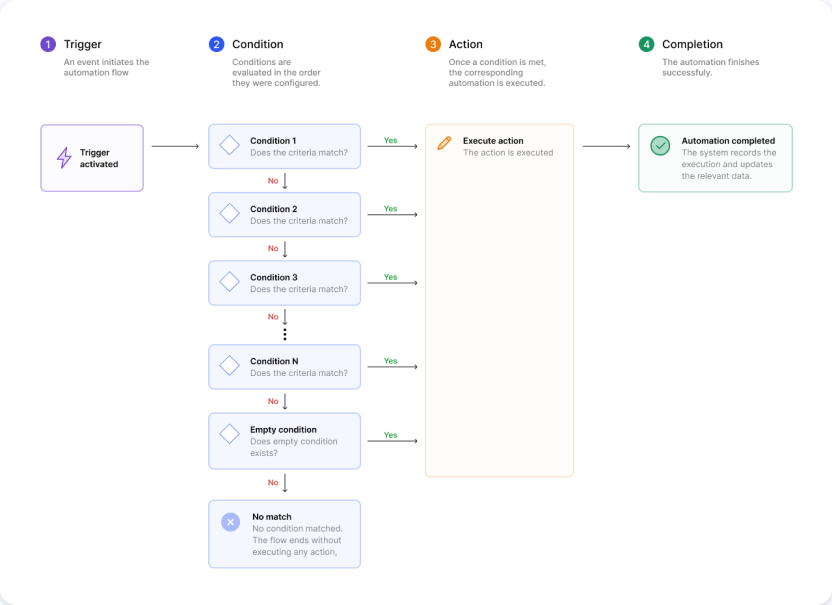
From trigger activation to action execution.
This user flow illustrates how the automation engine evaluates conditions and executes the corresponding action. Conditions are processed sequentially until a match is found.
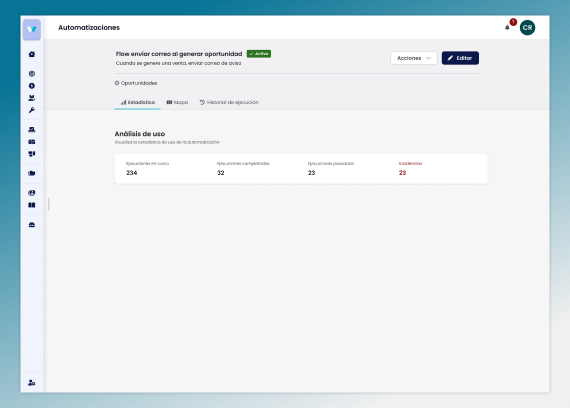
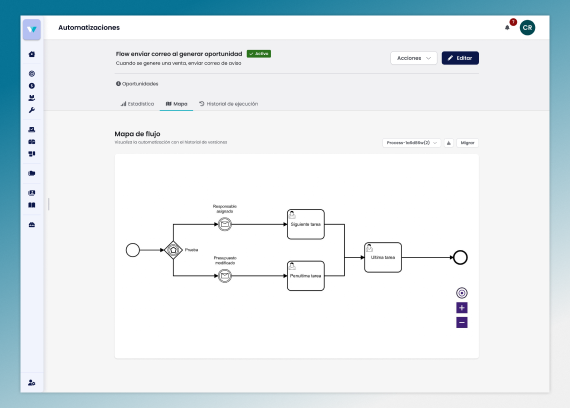
Trigger
The trigger is based on an entity, an event and some conditions.
The goal is to give the user the maximum possibilities to customize the trigger based on different criteria and use cases.
Below you can see an example of creating a trigger with some different conditions:
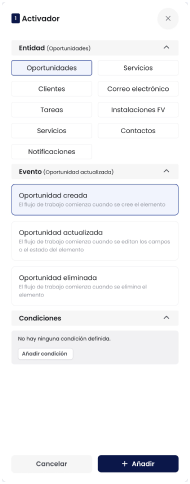
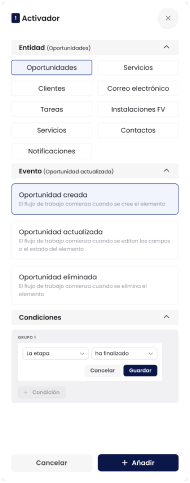
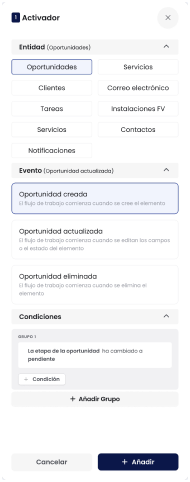
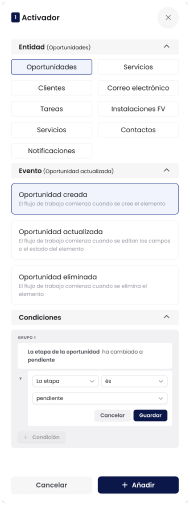
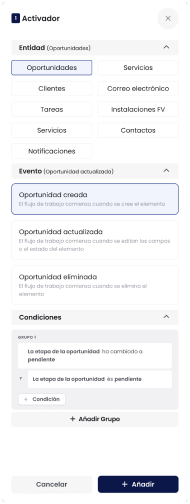
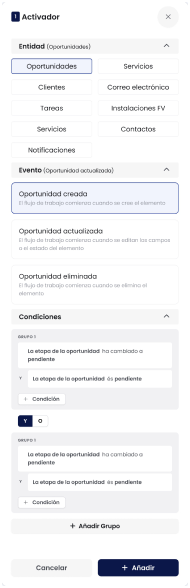
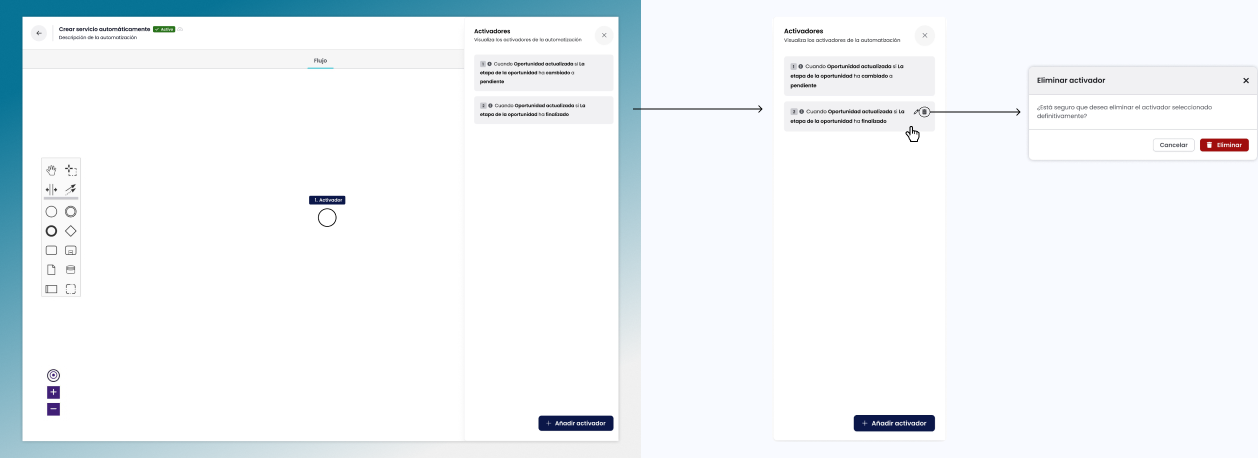
A trigger is mandatory, so it cannot be deleted if only one exists. However, if there are two or more, the delete option will become active.
Condition
Testing revealed an important edge case: the workflow could stop when no condition was met. I added a final fallback condition to ensure the workflow could always continue.
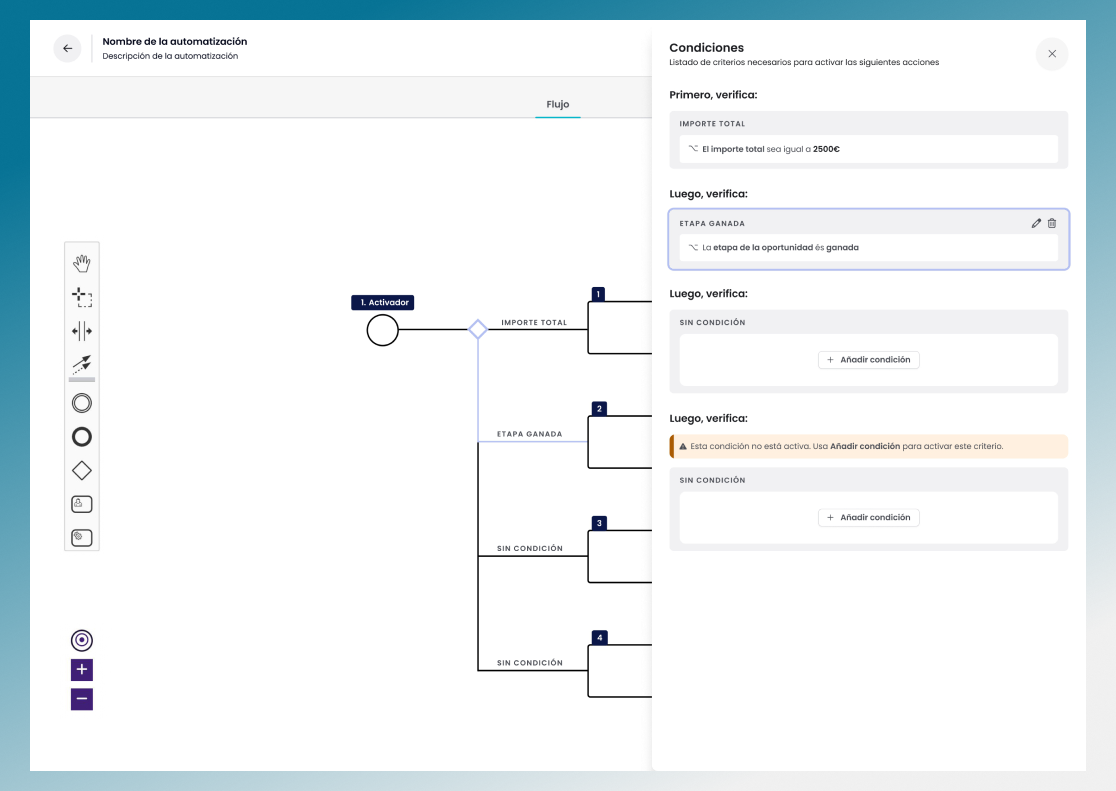
Action
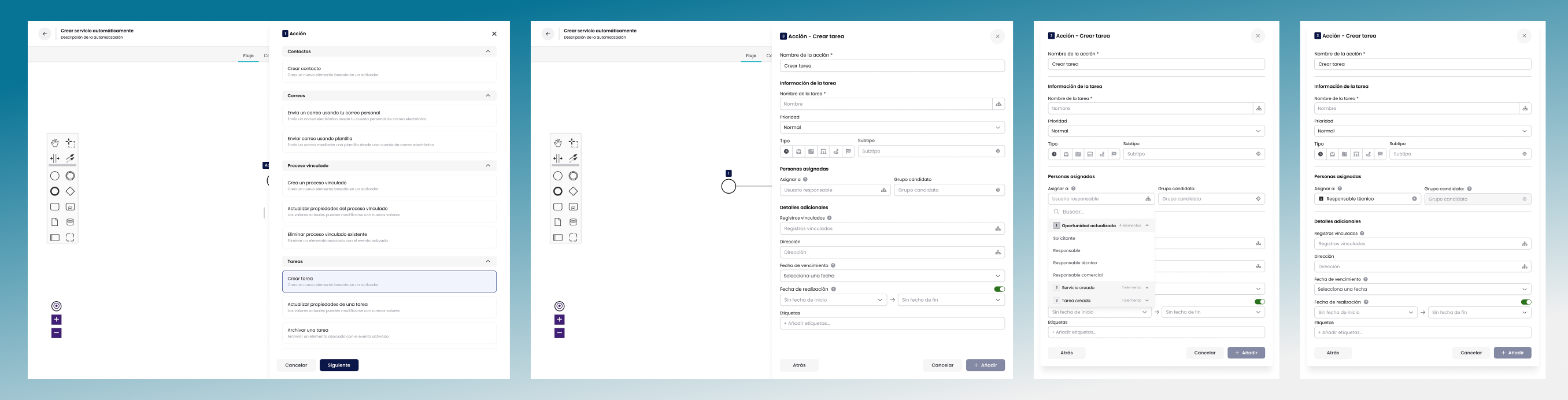
Designing the actions was challenging from a UX perspective due to the complexity and variety of the many selection scenarios involved.
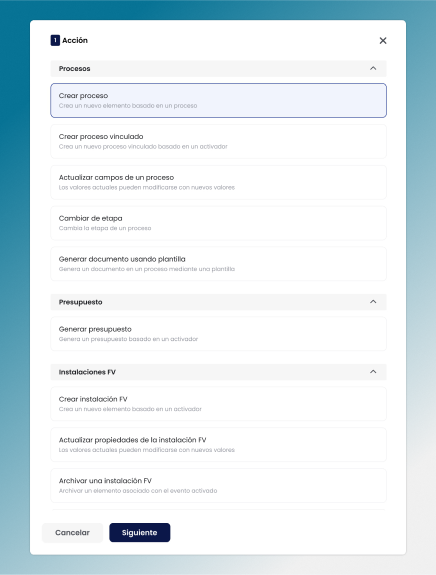
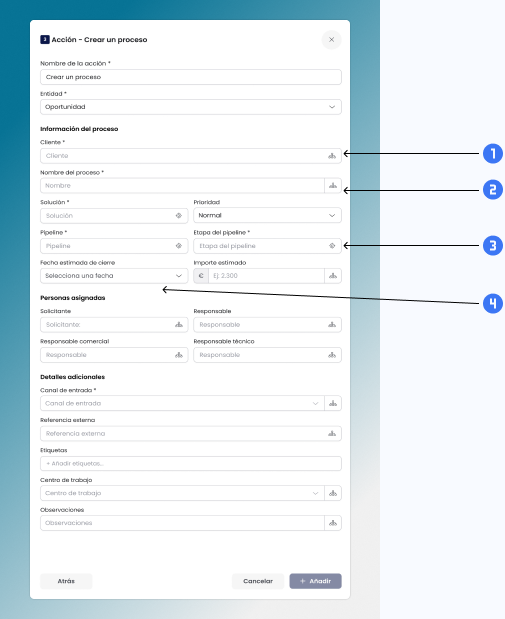
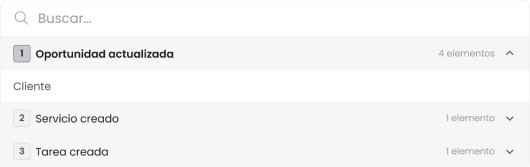
Given that the automation is hierarchical, a dropdown menu was created with the previously created actions and their available options to select from.
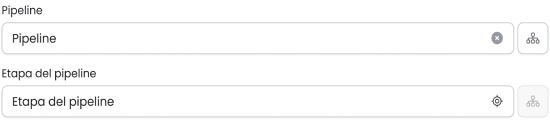
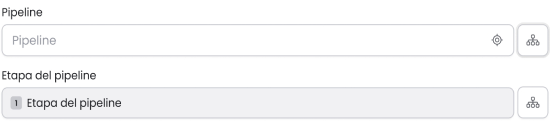
When you select the client, certain default values are automatically included and are non-editable. To make it easy for the user to understand, an extra read-only state has been added to clearly signal that these values cannot be modified.

Given that all the variables are linked, choosing one option over another can result in three possible states for the variables: enabled, disabled, or selected.
Option 1
Option 2
Research was carried out to determine the options that users use the most.
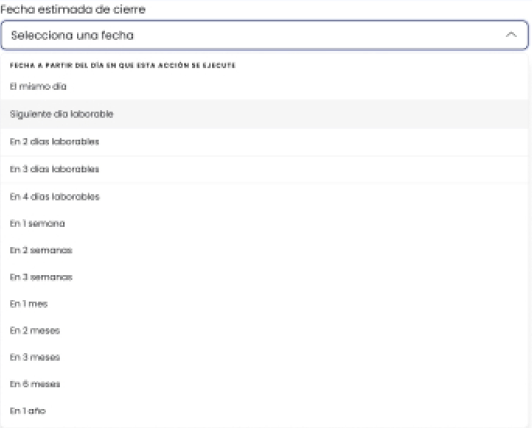
Let’s see some examples